Change the product on a label
A label can be unassigned from its current product and then linked to a different product. This process ensures the label displays the correct product information and pricing.
Reassigning without unassigning is possible; however, unassigning first is best practice because it starts with a cleared label.
Unassign the current product
-
Open the AIMS Manager app on the mobile device.
-
Tap Unassign.
-
Scan the label barcode.
The barcode is on the bottom or right side of the label.
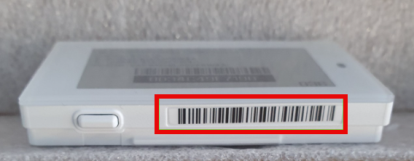
If needed, tilt the rail or remove the label to scan the barcode correctly.
Assign the new product
-
Tap Assign in AIMS Manager.
-
Scan the new product barcode.
-
Scan the label barcode, then confirm the product name and price display correctly.
If the label screen is blank, press the button on the bottom of the label for two seconds to wake the label.