Assign a digital label to a product
MedView Smart Shelf labels are linked to products through the AIMS Manager app. Product details and pricing are sent from Fred Office Plus to the label, and the label displays the linked product information at the shelf.
Link the product to a digital label
-
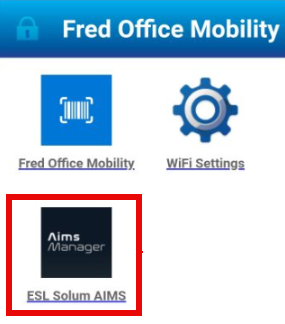
Open the AIMS Manager app on the mobility device.
-
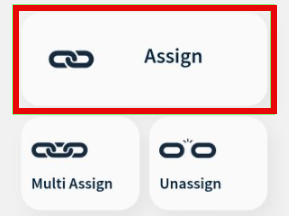
Tap Assign.
-
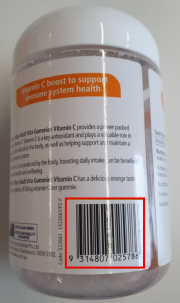
Scan the product barcode.
-
Scan the barcode displayed on the Smart Shelf label.
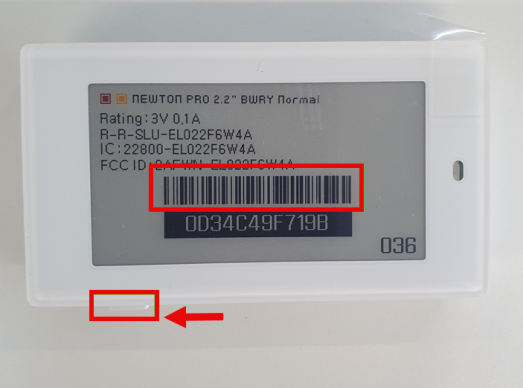
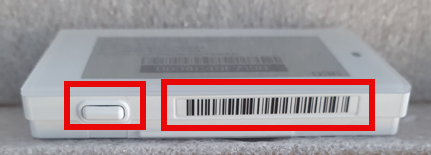
If the label screen is blank, press the button on the bottom of the label for two seconds to wake the label.
Alternatively, you can scan the printed barcode on the Smart Shelf label. For 2.2″ labels, the barcode is on the bottom. For 1.6″ labels, the barcode is on the right side.
-
Wait for the label to flash while data is received, then confirm the product name and price display correctly.
When using a phone or tablet camera instead of a dedicated PDA scanner, change Scanning Type to Camera & Typing in AIMS Manager settings.

MedView Smart Shelf is integrated with Fred Office Plus. When a product price is changed in Fred Office Plus, the assigned shelf label updates automatically. The label flashes and the new price displays within five minutes.